











Pictures into sprites.
Sprites straight into Unity.

AssetsLine cuts sprites with transparent backgrounds out of a mockup, a game screenshot or an icon sheet — and turns a UI mockup into a ready prefab.

20,000 tokens is about 150 images. No card needed.
1Picture → layers
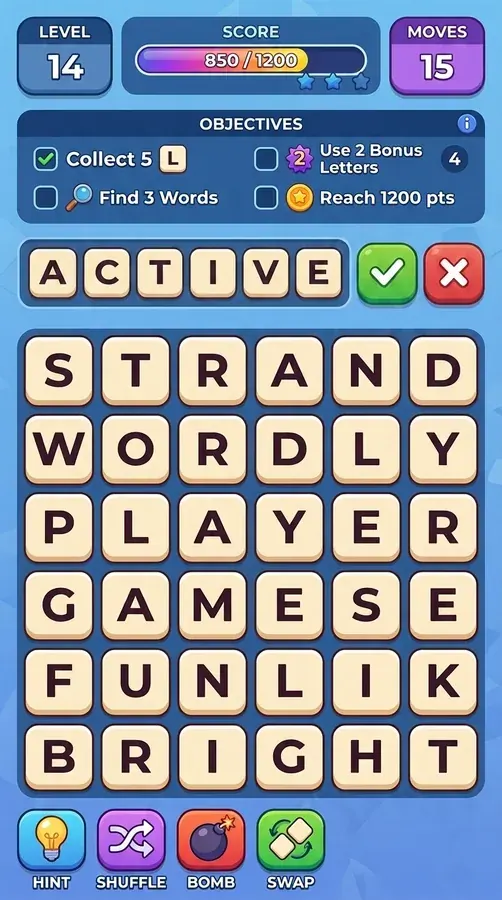
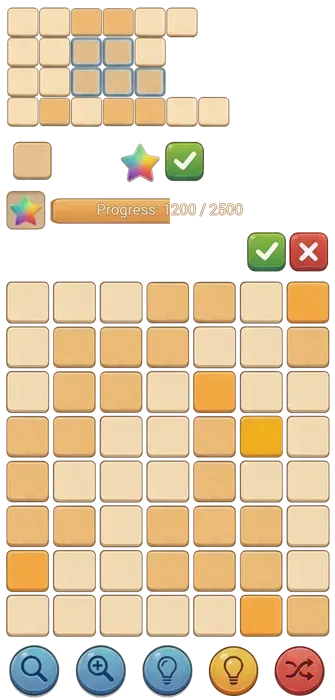
WordFall game screen
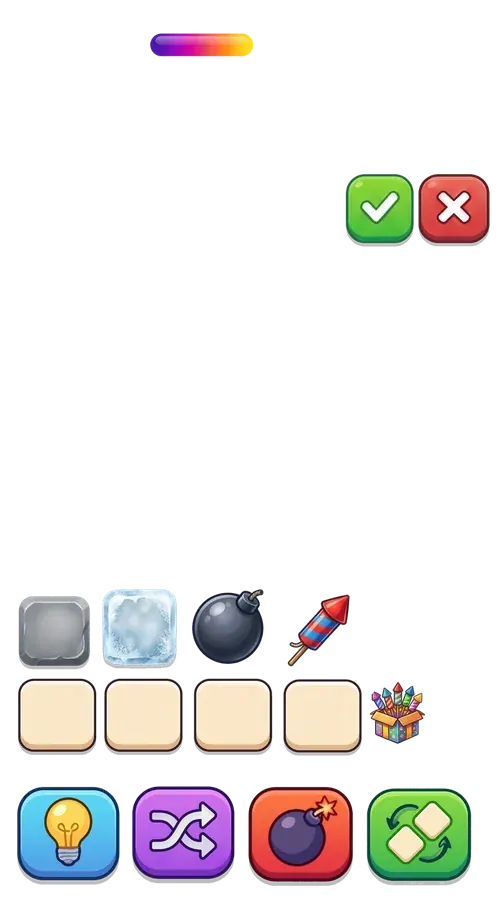
Buttons and tiles13 sprites
Panels6 sprites
BackgroundUI removed
2Sprites
19 sprites
  • idea_btn.png
  • shuffle_btn.png
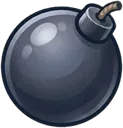
  • bomb_btn.png
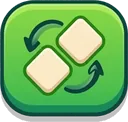
  • swap_btn.png
  • accept_btn.png
  • cancel_btn.png
  • letter_bg.png
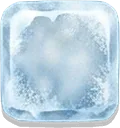
  • ice_letter_bg.png
  • stone_letter_bg.png
  • + 10 more
3Unity
Unity — Project
ProjectConsole
Assets › Generated › WordFall
idea_btn
shuffle_btn
bomb_btn
swap_btn
accept_btn
cancel_btn
letter_bg
ice_letter_bg
stone_letter_bg
bomb
rocket
fireworks
and 7 more
PNGs in Assets/Generated
Characters

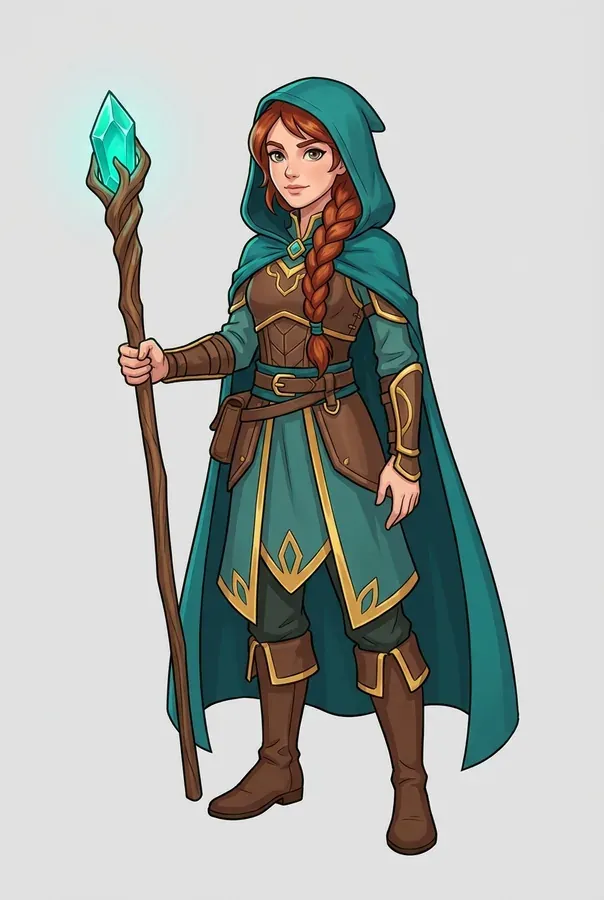
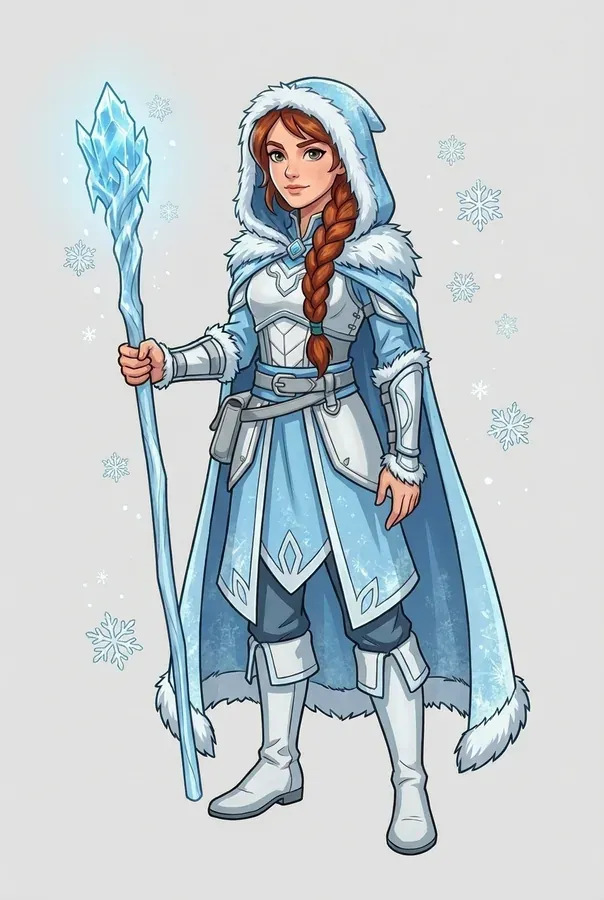
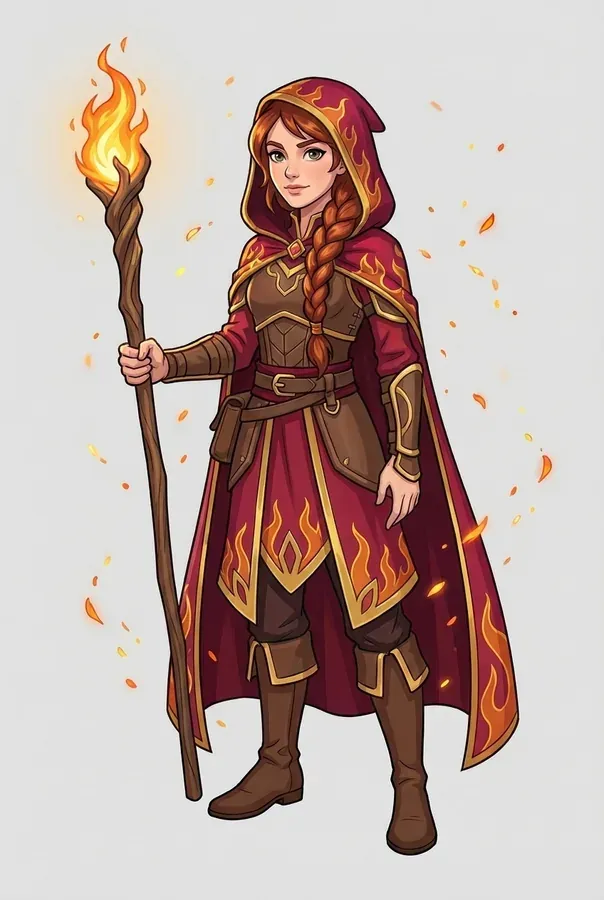
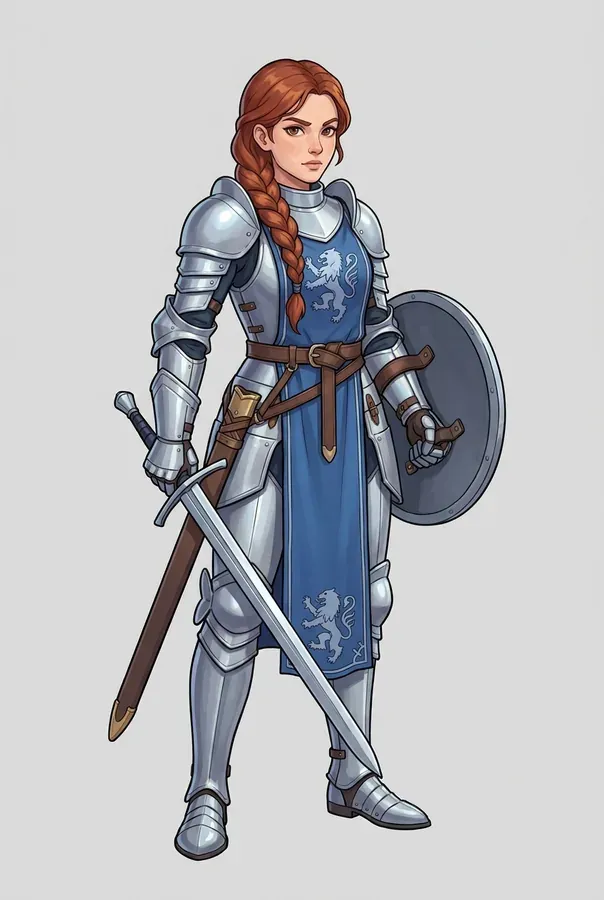
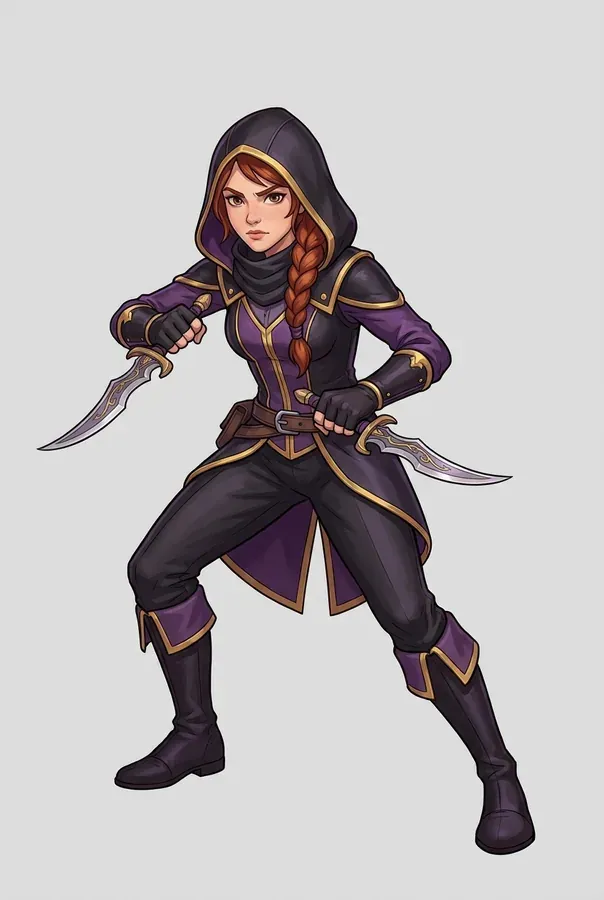
One heroine, many looks

Describe the character once. A new look is a text edit, and she stays recognizable.

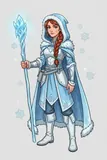
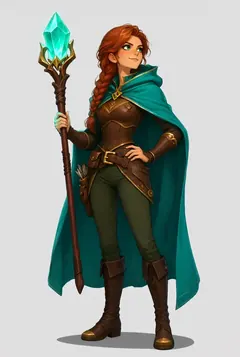
The heroine: concept
The heroine: frost
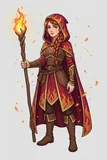
The heroine: fire
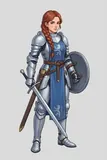
The heroine: knight
The heroine: rogue
The heroine: pixel art

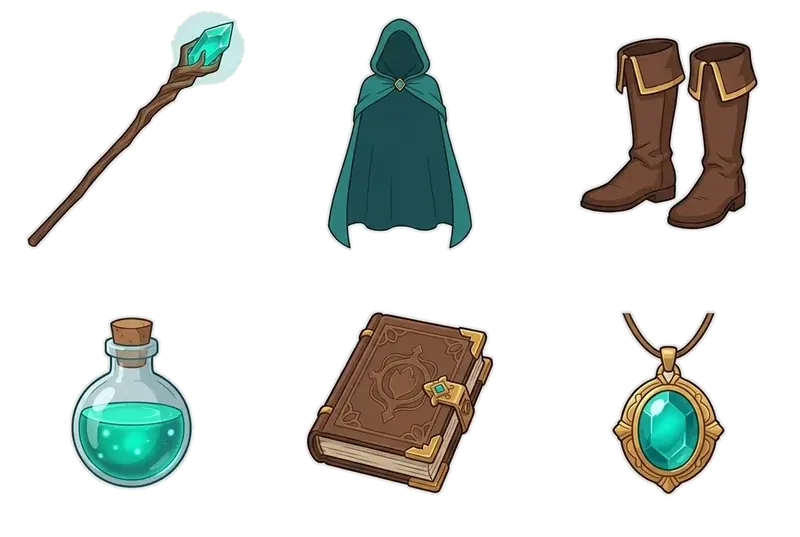
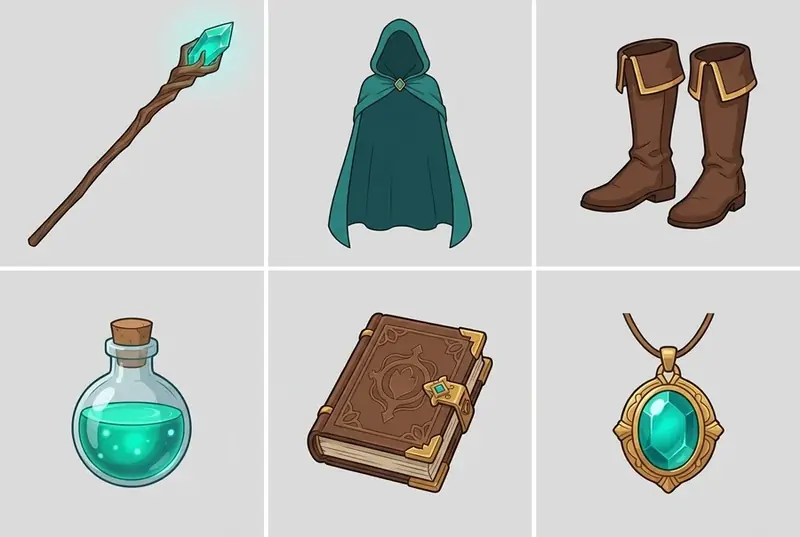
Gear into sprites

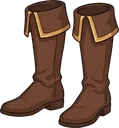
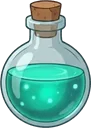
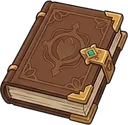
A sheet of items in her style is split into six sprites — ready inventory icons.

The heroine’s gear sheet
Inventory
  • staff
  • cloak
  • boots
  • potion
  • spellbook
  • amulet
How it works

Four cases, step by step

Each step is a node in the pipeline. You can tweak and rerun any step on its own.

01

Screen into sprites

Open the pipeline →

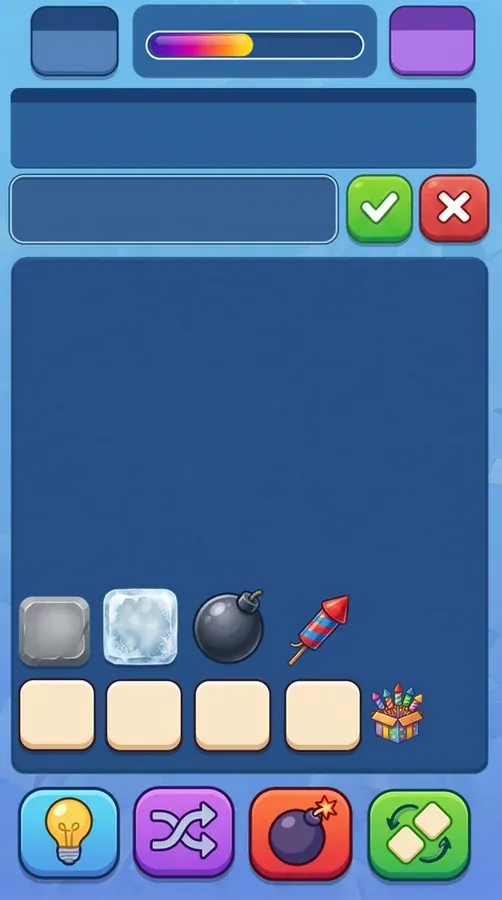
A game screen splits into a background and 19 sprites, and Composer puts it back together.

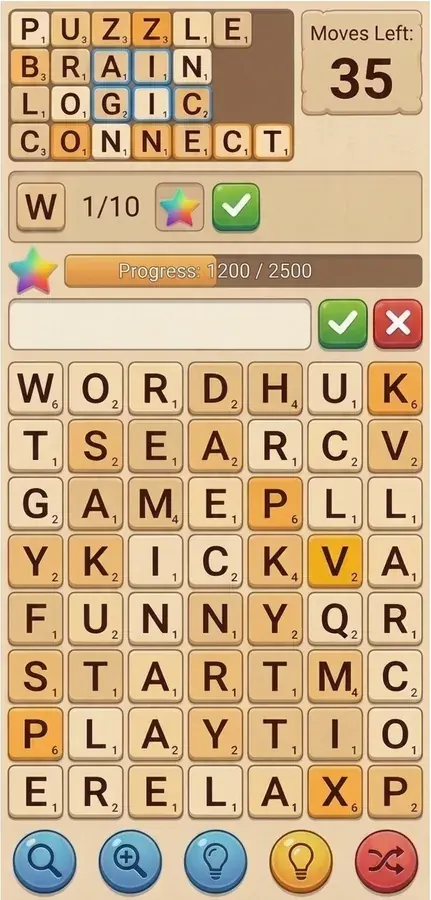
  1. WordFall game screen
    01

    Screen

    A WordFall screen generated from the game description, then refined with a text edit.

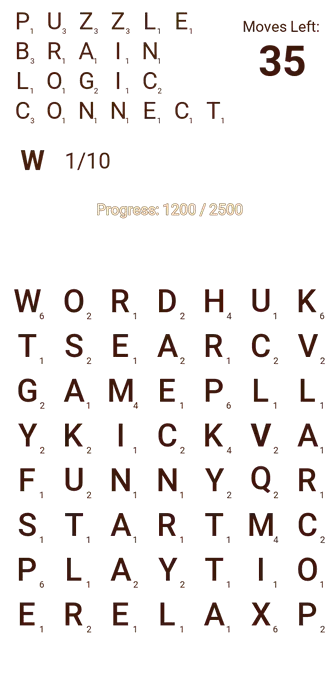
  2. The screen’s background without the UI
    02

    Clean background

    An edit — remove all UI and the letters, fill the gaps — leaves just the background.

  3. 03

    Parts

    Each part has its own extract node and a short prompt — for example, the bomb button without its shadow.

  4. The screen rebuilt from the sprites
    04

    Assembly

    Composer builds the screen from the background and 19 sprites. Swap any of them and the screen rebuilds.

02

UI from a mockup

AI image to UI

A screen image becomes a real Unity UI, with a hierarchy, sprites and text.

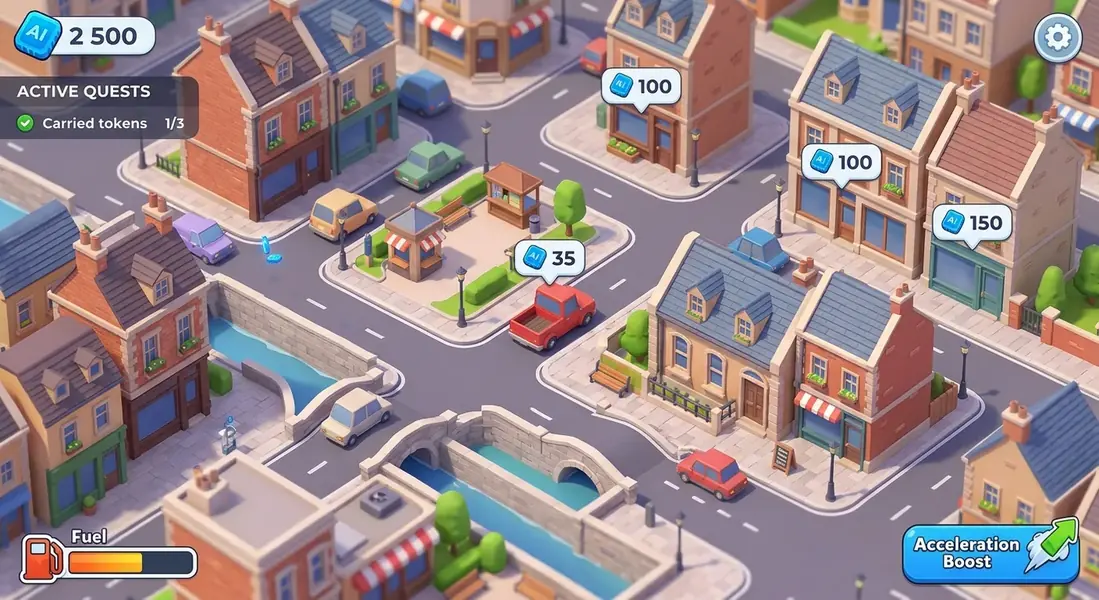
  1. Mockup of a word game screen
    01

    Mockup

    Any screen image — generated in AssetsLine or drawn by an artist.

  2. 02

    Sprites

    The node cuts out 29 elements — buttons, tiles, panels — with transparent backgrounds.
  3. {
      "name": "WordFall",
      "children": [
        { "name": "moves",
          "sprite": "panel_parchment",
          "children": [
            { "type": "text",
              "text": "Moves Left:" },
            { "type": "text",
              "text": "35" } ] },
        { "name": "toolbar", … }
      ]
    }
    03

    Layout

    An AI agent describes the screen hierarchy in ui_structure.json, builds the screen from it and checks it against the mockup.

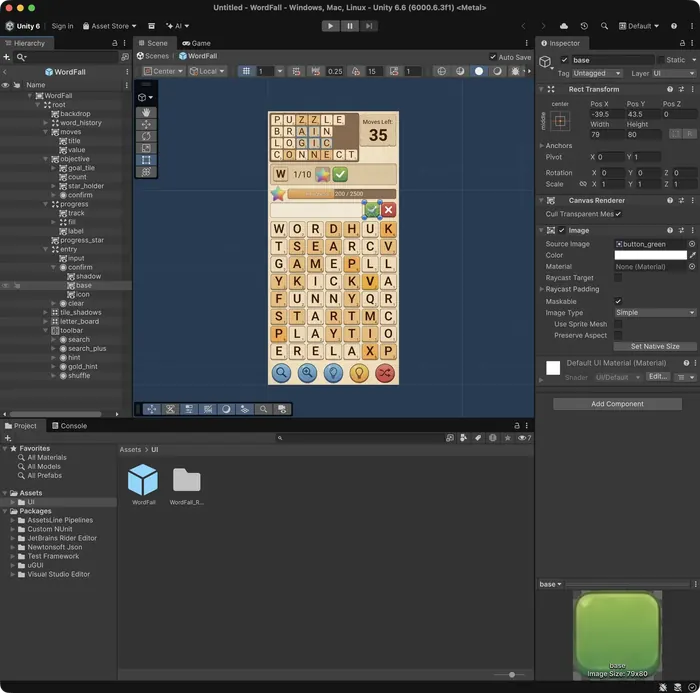
  4. The prefab in the Unity Editor
    04

    Prefab in Unity

    Download the .unitypackage, and a UGUI prefab with sprites, 9-slice and fonts appears in your project.

03

The heroine’s gear

From a character concept to a matching item sheet and separate inventory sprites.

  1. The heroine’s concept
    01

    Concept

    The heroine, from a text description.

  2. Gear sheet
    02

    Gear sheet

    Staff, cloak, boots, potion, spellbook and amulet, in the concept’s style.

  3. 03

    Sprites

    Each item is redrawn as its own sprite with no background.

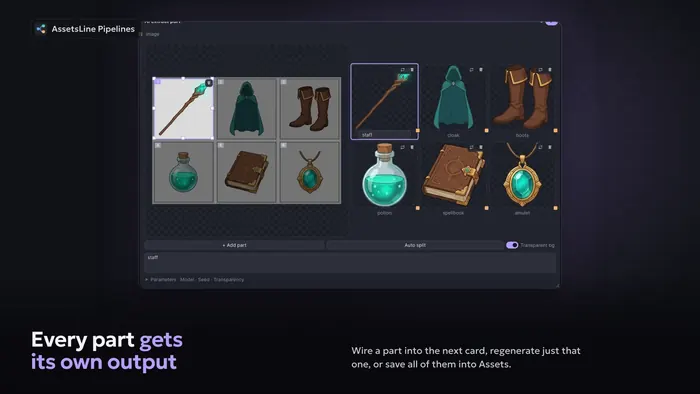
  4. The same steps in the Unity plugin
    04

    In Unity

    The same steps in the plugin: each item on its own output, all saved to the project.

04

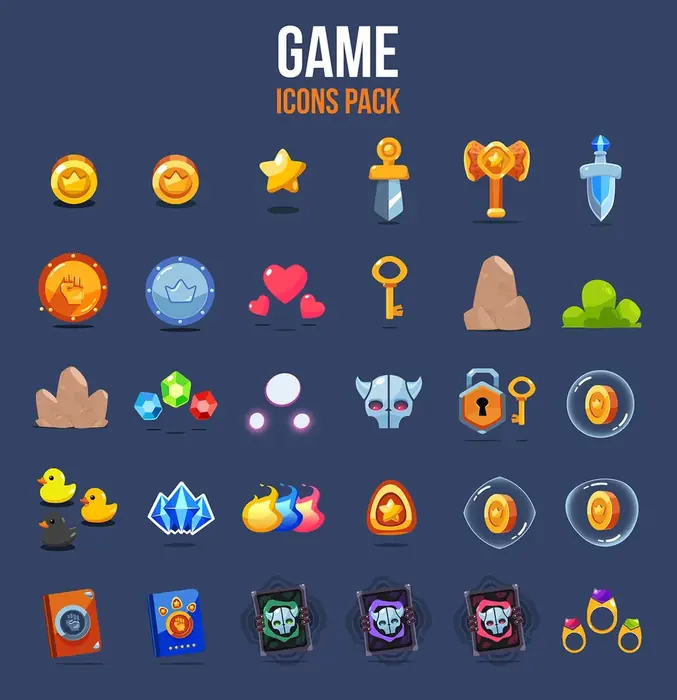
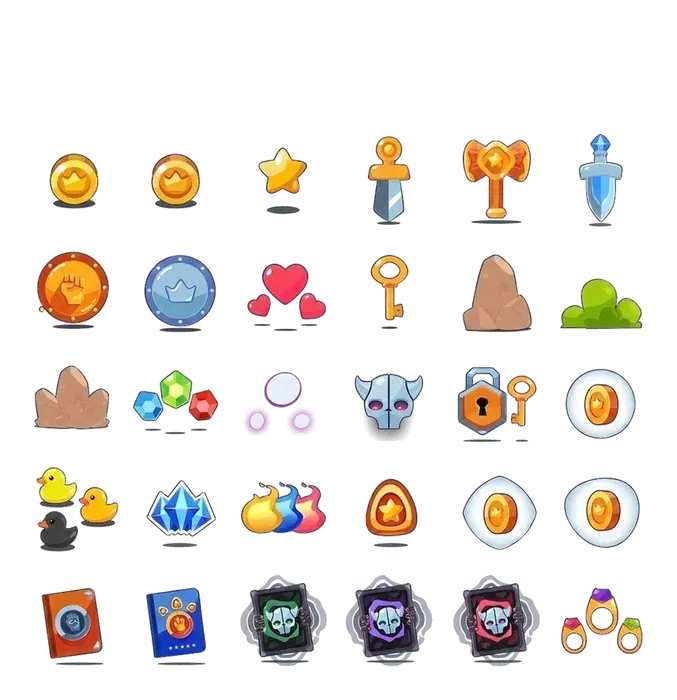
Icons from a sheet

Open the pipeline →

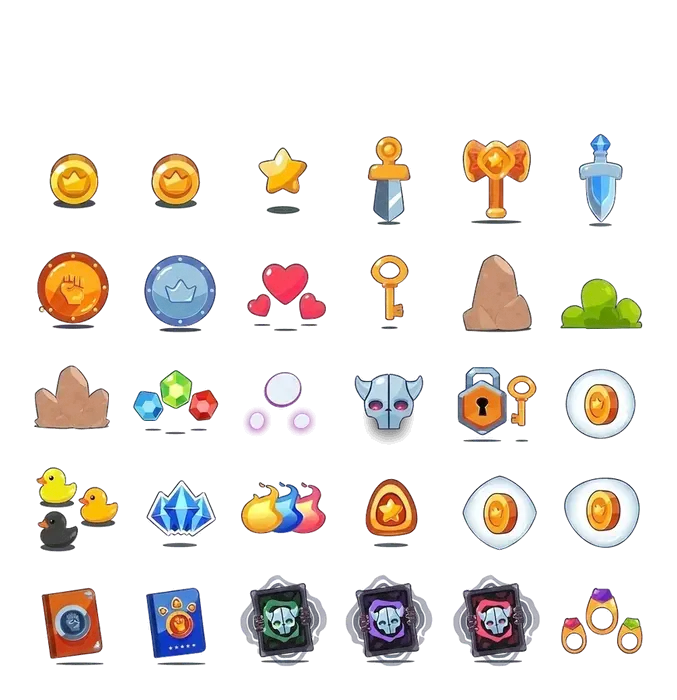
A finished icon sheet turns into a set of separate PNGs.

  1. Game icon sheet
    01

    Sheet

    Any icon sheet: your own, bought or generated.

  2. The icon sheet without its background
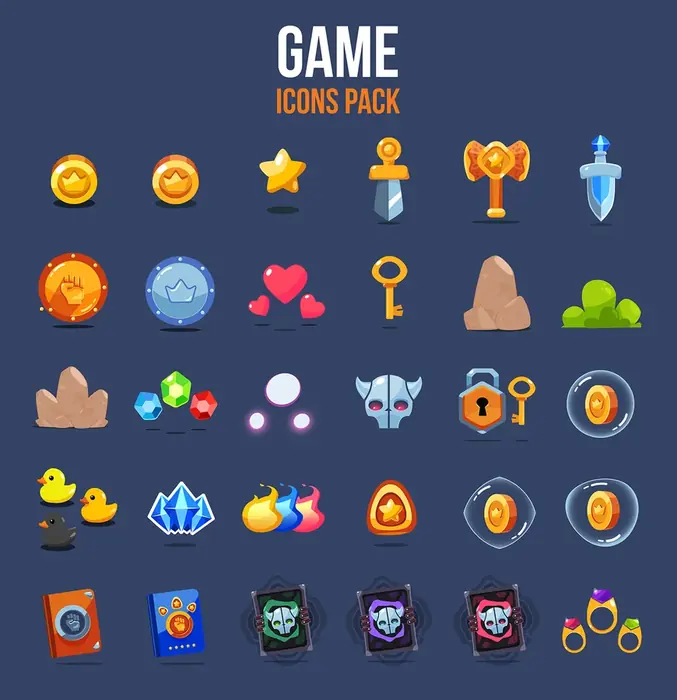
    02

    No background

    The background-removal node clears the whole sheet; the icons stay as they were.

  3. 03

    Cutting

    30 icons are marked on the sheet, and the node outputs each one as its own sprite.

  4. Unity — Project
    Assets › Generated › Icons
    gold_coin
    bronze_coin
    gold_star
    sword
    axe
    dagger
    bronze_shield
    blue_shield
    04

    In Unity

    In the Unity plugin, finished PNGs are saved straight to Assets/Generated.

Asset packs

One pipeline, a whole asset pack

Screens, icons, characters — from one source and in one style. Sprites come with transparent backgrounds.

Models

Any model in any node

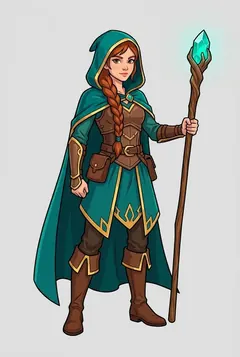
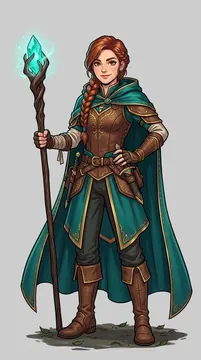
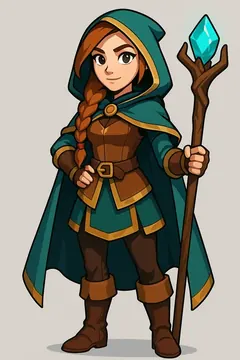
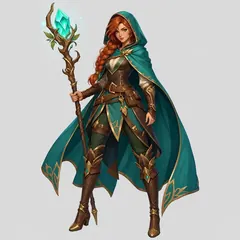
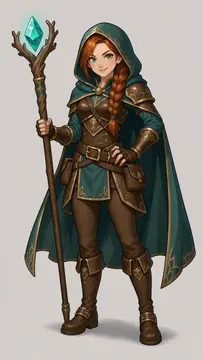
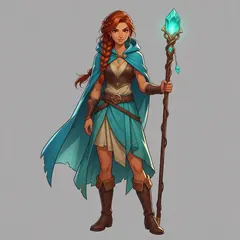
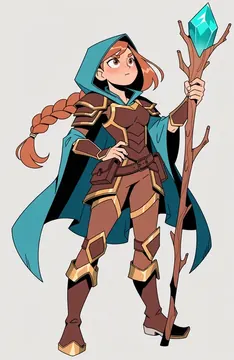
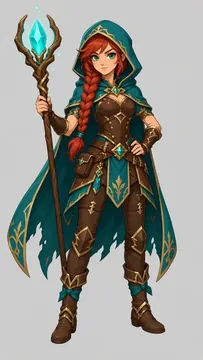
Each node has its own model picker. Here is the same prompt in nine models.

  • Gemini 3 Pro Image result
    Gemini 3 Pro ImageGoogle
  • Nano Banana 2 result
    Nano Banana 2Google
  • GPT Image 1 result
    GPT Image 1OpenAI
  • GPT-5.4 Image 2 result
    GPT-5.4 Image 2OpenRouter
  • Flux 3 result
    Flux 3OpenRouter
  • Seedream 5 Pro result
    Seedream 5 ProOpenRouter
  • Recraft V4.1 result
    Recraft V4.1OpenRouter
  • Grok Imagine 2 result
    Grok Imagine 2OpenRouter
  • Qwen Image 3 result
    Qwen Image 3OpenRouter

The prompt, in short: a ranger-mage for a mobile RPG, teal cloak, crystal staff, 2D art.

Images
Gemini, GPT Image, Flux, Seedream, Recraft, Grok, Qwen and more
Text and prompts
Gemini, OpenAI, Claude and more via OpenRouter
Video
Veo, Kling
Voice and sound
Gemini, ElevenLabs
Music
Lyria
Unity

Unity pluginFREE

The same pipeline editor, inside the Unity Editor. Finished images are saved to Assets/Generated, and pipelines sync with your AssetsLine account.

  • No API keys needed: generations run through your AssetsLine account.
  • Your 20,000 starter tokens work in the plugin too.
  • To connect, click Connect AssetsLine in the plugin window.

The plugin is on its way to the Unity Asset Store.

Examples

Before → after

Six real results from the examples project. Drag the divider.

The heroineFrost look
← The heroineFrost look →
One text edit: the same character in a new look.
Payment

How you pay

Two ways — pick the one that suits you. You can start for free.

If you have API keys

Your own API keys

Connect a Gemini, OpenAI or OpenRouter key. You pay the provider at their price, with no markup from us. Using your own keys requires a subscription.

  • No markup on generations
  • Any OpenRouter model
  • The key covers everyone in your projects
If you’d rather not deal with keys

Token packs

No keys needed: buy a pack and generate with any model.

  • The cost of a run shows on the ▶ button before you start it
  • Failed generations are not charged
  • Tokens never expire, and an unused pack can be refunded
Sign up and get 20,000 tokens — about 150 images. No card needed.Pack and subscription prices

Questions and answers

What do I need to start?

A browser and a Google account. You get 20,000 tokens when you sign up — no keys or card needed.

How do I connect my own API key?

Create a key with the provider — in Google AI Studio, OpenAI or OpenRouter — and paste it into AssetsLine settings. Own keys come with a subscription, and you pay the provider for generations at their price.

Where is my key stored?

In your account settings. It is used for generations in your projects, including runs started by project members.

How do I connect Unity?

Install the free plugin, open its window from the Window menu and click Connect AssetsLine. Once you sign in, pipelines sync with your account, and generations are charged to your AssetsLine balance.

Is the Unity plugin really free?

Yes. You only pay for generations — with tokens or with your own keys saved in AssetsLine.

Do I need to understand AI or nodes?

No. Start from a ready example: change the text in the nodes and press ▶. There are only a few kinds of nodes: sources, generation, processing and saving the result.

Can I use the results in a commercial game?

Yes. Everything your pipelines make is yours.

What if a generation fails?

Failed runs are not charged, and an unused token pack can be refunded.

Start from a ready example

Sign in with Google — 20,000 tokens are already on your balance, no card needed.